Friday, 25 October 2013

Installing Harp on Debian Jessie

I recently came across the new open source web server called Harp.
Here is the description from the Harp website;


What is Harp?

Harp is a zero-configuration web server that is used to serve static assets. It has a built in asset pipeline for serving .jade, .markdown, .ejs, .coffee, .less, .styl as .html, .css, and .js. Harp supports a template agnostic layout/partial system and metadata for dynamically building files.


I thought I would take Harp for a drive around the block and decided to install it on a Debian Jessie virtual machine.
The installation process is rather easy except for one issue due to the Node.js package.

Here is the process to install Harp.

Firstly there are some prerequisites to get Harp installed being Node.js and npm, the package manager for Node.   I decided to install Node and npm using the Debian package repositories with these commands.

apt-get update
apt-get install nodejs npm

Once Node is installed, you can install Harp using the Node package manager.

npm install harp -g

The -g switch in the above command tells the package manager to make the Harp install global rather than a local directory install.

Harp is now installed and everything should be ready to go!   There is a problem though.   If you run the following command.

harp --version

You will get an error which is very misleading.

/usr/bin/env: node: No such file or directory

You can be forgiven for thinking that the harp binary was not found.   This is not the case.   The problem here is Harp is trying to call Node.js by using the command 'node' while on a Debian system the Node command is 'nodejs'.

This is easy to fix with the following symbolic link.   Simply run this command.

ln -s /usr/bin/nodejs /usr/bin/node

Now if you run Harp everything works as expected.

harp --version
0.9.4

All that is left is to follow the instructions on getting started to use the Harp web server.


Wednesday, 16 October 2013

A PowerShell Script to Warm Up or Wake Up SharePoint 2013

I was discussing SharePoint warm up solutions with some colleagues today and reviewed some of the solutions on the web.

The reason SharePoint needs warming up is because the first time a page is accessed in SharePoint the Just-In-Time compiler creates native images of the ASP.NET code within SharePoint.   Unfortunately this compilation needs to be carried out once a day due to the recycling of the Internet Information Services (IIS) World Wide Web Worker Processes (w3wp.exe) that host the SharePoint applications.

I decided to try my hand at writing one in PowerShell. Here is a simple solution.

Access the Gist here: https://gist.github.com/grantcarthew/7000687

Tuesday, 15 October 2013

A Telnet Client written in PowerShell

A little while ago I started writing a telnet client in Microsoft's PowerShell.   After it sat unfinished for a time I finally got around to improving it with multiple threads and cleaning it up.   It now works well so I decided to post about it.

Why would I write a telnet client in PowerShell?   Just for fun mainly.   It has been a good project to learn some more about PowerShell and may be of use for automating the configuration of Cisco routers and switches or running scripts on other servers.

The most interesting thing I learned as I worked through the project was about how to get PowerShell to support multiple threads.   Using the low level .NET Framework System.Net.Sockets.Socket class added to the complexity.

To start off with I created the telnet client using a "while" loop that ran continuously and caused the script to use up 20% of the CPU while doing nothing.   I couldn't fix this with a sleep timer because it made the client unresponsive.   The problem was I needed to respond asynchronously to reception of data through the TCP connection, and respond to user input at the console.   Very easy to do with C#, but in PowerShell?

To implement the reception and transmission of data at the same time asynchronously I started by trying to use the Asynchronous Programming Model used in the .NET Framework.   This is a little tricky because the tread pool used in PowerShell is different to the thread pool used in .NET.   I did find a way of using the async callback methods with PowerShell from a blog post by Oisin Greham.   I still had issues trying to get this to work though.

I gave up on using the async methods of the Socket class and started looking for alternatives.   It would have been nice to use the Register-ObjectEvent cmdlet and other event cmdlets but the Socket class does not have any publicly visible events to consume.

I briefly looked at the PowerShell Jobs cmdlets, but they didn't work well for this application because they use the remoting subsystem which serializes objects when they are passed between jobs.   This means passing an object by reference is not possible and I need a reference to the connected Socket.   That's when I came across the concept of creating a new PowerShell object using [PowerShell]::Create().

When [PowerShell]::Create() is called from a PowerShell script or console, a new instance of PowerShell with an empty pipeline is returned for you to make dance and sing any way you like.   The beauty of this new PowerShell object is you can pass objects by reference meaning I could pass the connected Socket.

So now I have two threads to use in my PowerShell telnet client.   The main PowerShell process creates a child PowerShell process and initiates it with a script to receive data from the socket.   After initiating the child a "while" loop is used with a blocking call to the $Host.UI.RawUI.ReadKey() method to wait for user input.

Rather than explain the code in any more detail, I will let the code do the talking.   If you want to use this code use the Gist link: https://gist.github.com/grantcarthew/6985142


Thursday, 12 September 2013

Simple Git Workflow for PowerShell Script Development

I create a lot of PowerShell scripts and source control comes in very handy for replicating the scripts to servers and managing versions and branches.

I discovered Git many years ago and it works really well for managing PowerShell scripts.

This blog article is a reference for the commands to manage a script repository.

The first thing you need to manage PowerShell scripts using source control is Git.   My favorite package for working with Git is the portable version of Git for Windows called msysgit.   Make sure you download the portable version, although there is nothing wrong with the fully installed version of Git.   There are many other popular 'Git for Windows' packages such as GitHub for Windows and Posh-Git.

Once downloaded, extract the files and run the 'git-bash.bat' file to get to the *nix based prompt.   Notice you will need to use forward slashes / rather than back slashes \ in your file paths including UNC paths.   Other *nix based tools are also available here such as 'ls -l' and 'rm' etc.


Once you have Git portable running you will probably need to copy it to any server or workstation that you will be writing scripts or creating repositories with.

The first thing you need to do in the Git bash prompt is tell Git who you are.   This will save your user name and email address for assignment to any commits you make withing a repository.   You do this with a couple of git config commands. Whilst you are configuring Git you may as well set the default push mode to simple as described here, otherwise a message will be displayed stating the default is changing in Git v2.0.

git config --global user.name = "Grant Carthew"
git config --global user.email = "your@emailaddress.com"
git config --global push.default simple

You will need to run these commands on each workstation or server you intend to run Git on.

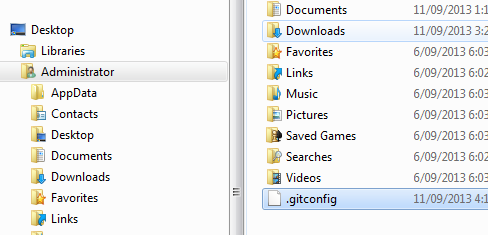
When you run the global config commands a .gitconfig file will be created in the root of your profile.   This .gitconfig file holds simple text configurations.


Now that you have Git configured for your workstations and repository file server, let's create a repository to host our PowerShell scripts.

On a file server create a shared folder where you wish to host your Git repositories.   I tend to create a folder called GitRepo.   This folder will be accessed using a UNC path such as \\FileServer\GitRepo.

Now on the file server using Remote Desktop, run the Git bash and change directory to the GitRepo root folder.   Within this folder create a new folder to host your PowerShell scripts and place a '.git' at the end of the folder name.   The '.git' extension is just a convention used for bare repositories.   Change directory into the new folder.   See the example in the screenshot below where I am creating a Reporting.git repository.


Now the fun part, time to initialize a Git repository.   The best type of repository to create on a central file server is a bare repository.   A bare repository does not host a working tree which is the Git name for the script files in the root folder.   The files in a bare repository cannot be edited because they are hosted in the Git object store.   One simple command will make a bare repository.

git init --bare


That's it.   You now have a starting point for hosting your PowerShell scripts.   Open the folder in explorer if you wish to see the folder structure that has been created by the init command.


There is nothing further to do on the file server.   Disconnect your remote desktop session to start working on your workstation.

Run the Git bash prompt on your workstation and change directory to the folder you would like to use for script development.   Do not create a folder for the new repository, git will do that with the clone command.

Now that you are in the correct folder in the Git bash, run the following command to clone the file servers repository.

git clone //FileServer/GitRepo/Reporting.git

This command will clone or copy the repository from the file server into a new folder.   In this case I am using a folder called Reporting.   Notice the '.git' extension is not included in the new folder name.   There will be a warning about cloning an empty repository which you can ignore.


If you open the new cloned repository in explorer you will see a '.git' subfolder which is where Git hosts all versions of files in the repository and other configurations.   If you ever want to remove Git from this folder, simply delete the '.git' subfolder and it is gone.


Now it is up to you to develop a heap of wonderful PowerShell scripts to weave magic across your server farm.   Once you have created the scripts in the new repository folder, it is time to commit them into Git.

One of the best commands in Git is the git status.   Run git status now and you will see the new script files you have created in the repository as untracked files.

git status


As untracked files they are not part of the repository and need to be added to Git.   This can be done using the git add command.   The easiest way to add all the new/changed/deleted files into the repository is to use the git add command with the parameters below.

git add . -A

The above git add command uses the file pattern of '.' meaning all files and folders.   The '-A' parameter is short for '--all' and tells git to add all files including removing deleted files.   The git add command will not save changes back onto the repository just yet, they are only staged.   Run a status command again to see the files staged.

git status


Now that the new script files are staged we can commit them into the master branch of the repository with the following command.

git commit -m "Initial commit for the Reporting repository"


The changed or new files are now committed to the Git repository on your workstation.   They have not been saved back to the file server yet.   Let's run the status command again just for kicks.

git status


As you can see from the git status report, Git now sees the working tree as clean because all the files in the directory are committed.   The git status command is great for letting you know if you have changed files.

You can keep working on your workstation script files if you wish but I tend to like pushing the changes back to the file server after every commit.   Because we cloned an existing repository from the file server there is no need to tell Git where the original repository is located.   To push the changes up to the file server simply type in this command.

git push origin master


From now on you can simply run 'git push' without the 'origin master' parameters.   You can continue working on the script files and commit the changes up to the file server following the same workflow above.
Here is a git status with a new file and a changed file.


So to add these changes into the local and remote (origin) repositories we do the following.

git add . -A
git commit -m "commit message"
git push


Up to now we have been building the repositories and developing the scripts.   To use the scripts on a target server you have some PowerShell Remoting options or you could get a copy of the scripts onto the servers.   I find a handy way of working with PowerShell scripts is to store them in a location on the server that is included in the Path environment variable.   This way you can call your scripts as if they are cmdlets.
To get a copy of our scripts on to the target machines we can simply clone the file server repository.

git clone //FileServer/GitRepo/Reporting.git


Once the files are cloned onto a server you can run the scripts or update the scripts creating more commits and pushing the changes back to the file server.   Note that Git is a fully disconnected utility so it will not tell you if the original repository, the one on the file server, has updated files.   Before you run any scripts in a target server repository, always run Git and do a git pull to bring down the latest changes from the origin.

git pull

In the following screenshot of the git pull command you can see I have merged the 'Usage' scripts into a 'Publish-ResourceUsage' script which involved deleting three scripts and renaming one.


All of the above work within Git is using what is called the 'master' branch of the repositories.   You can create branches for major changes without effecting the 'master' branch.

I am not going to explain branching in much detail here.   These are the commands you would use for branching just as a quick reference.

git branch webreports
git checkout webreports
*make crazy changes to your scripts*
git add . -A
git commit -m "Created the new web reporting script"
git push origin webreports
*happy with your changes?*
git checkout master
git merge webreports

It probably goes without saying that Git is not designed for PowerShell scripts.   It will work with any files you want to manage.   Once you start using it and become comfortable with the commands you could use Git to manage all of your scripting and programming source code.

In summary, Git has saved my bacon many times when working with large numbers of scripts and other files.
If you adopt Git two things will happen, you will start to love it, and you will be more efficient at managing your PowerShell scripts.

Lastly, be aware there are public Git hosts you can use for free.   Each have a subscription model.   I use GitHub for public hosting although I am not using it much yet.   For private Git repositories I use BitBucket.

[Edit 1] - I just read through this tutorial on Git and it is one of the best ones I have seen.   It approaches Git from a real world point of view and ignores some of the more complex features.


Monday, 2 September 2013

Windows Server 2012 Core Keyboard Input Method Changes

Here is an issue I just had with Windows Server 2012 installed as a server core system.   For those not familiar with a core install, there is no desktop with just a command prompt for managing the system.

As it turned out on this system I was trying to manage, the default keyboard input was set to the UK keyboard.   If you are using a US keyboard with a system set to the UK keyboard, some of the keys will be mapped incorrectly.   A very good example is the pipe symbol.   I was trying to use PowerShell to configure the server and discovered I could not pipe command objects.

Easy fix I would have thought only with Windows 8 and Windows Server 2012, Microsoft has moved the keyboard input configuration into the Metro start screen.   A server core does not have the Metro interface at all.

After some searching I found the best way to fix the problem.   One registry key change.
You can run the registry editor on the server core installations.   So simply run regedit.exe and navigate to;
HKCU:\Keyboard Layout\Preload and change the key titled "1" to the desired input method.   US is 00000409.

Here is some more detail about the registry keys;
http://support.microsoft.com/kb/102987/en-us


Tuesday, 27 August 2013

Public BTSync Secrets

Following is a list of BitTorrent Sync secrets I am using to share files with colleagues;

SharePoint Support Files
Read only secret: B3XNA62PYSAAH7LGKCIORW536DVG3OME2
This repository hosts information and files related to installing, configuring, maintaining, and developing for Microsoft's SharePoint.

Lync Support Files
Read only secret: BXJDISWQTV6S2MJKVCK3HBV3DDPXZR4TG
This repository hosts information and files related to installing, configuring, maintaining, and developing for Microsoft's Lync Server.

PowerShell Support Files
Read only secret: B5CQA6PNTYAMQCJBUBNB32XQV4WJGL2YQ
This repository hosts resources for working with Microsoft Windows PowerShell.

If you would like to get read write access to any of the above repositories to add to the resource, please contact me and I will send you the secret.

This list will expand as I add more repositories.


BitTorrent Sync Thoughts

Update: Don't use BTSync. Checkout SyncThing instead.

As I broaden my usage of BitTorrent Sync (BTSync) I am coming up with more and more ways of making my life easier with this brilliant tool.

Here is a quick list of ways to use BTSync;
  • Sync your photos from your phone to your desktop
  • Sync your music from your desktop to your phone
  • Backup your files
  • Deploy software development solutions such as websites or script files (PowerShell).
  • Share files with family and friends
  • Support your family and friends remotely (screenshots etc.)
  • Share files with customers
  • Sync your installed games to multiple machines

One of the problems I had when first using BTSync was the naming of the folders and where to store them.   After using it for a month I came up with a good name for the root folder where I place all my synchronised folders.   I now have a folder called "Pool" and inside are all of the folders being synchronised.


This Pool folder is used for simple synchronised folders while I have backups and other large synced folders stored elsewhere.

BTSync is only new and I started using it with a little apprehension.   Because of a build up of trust in the stability of BTSync over the last month I decided to start synchronising a large folder on my home file server.   My file server is running on a Raspberry Pi, so I had expectations that the indexing (hashing) process would be rather slow on a 900GB directory of pictures, music, documents and more.   As it turns out, the btsync daemon is crashing often.   It looks like the software package needs more resources than the Pi can deliver which is a real shame.   I am hoping bugs like this will get fixed as the product matures over time.

If you haven't given BTSync a spin yet, give it a go.   You may find it saves you time and gives you access to your files in ways you never thought of.

If you have thought of a unique way to use BTSync, let me know about it in the comments below.